Photo Enhancement
AI Unfurnish Tool for Property Photos
Remove furniture from a room photo to show a cleaner, empty-space version.
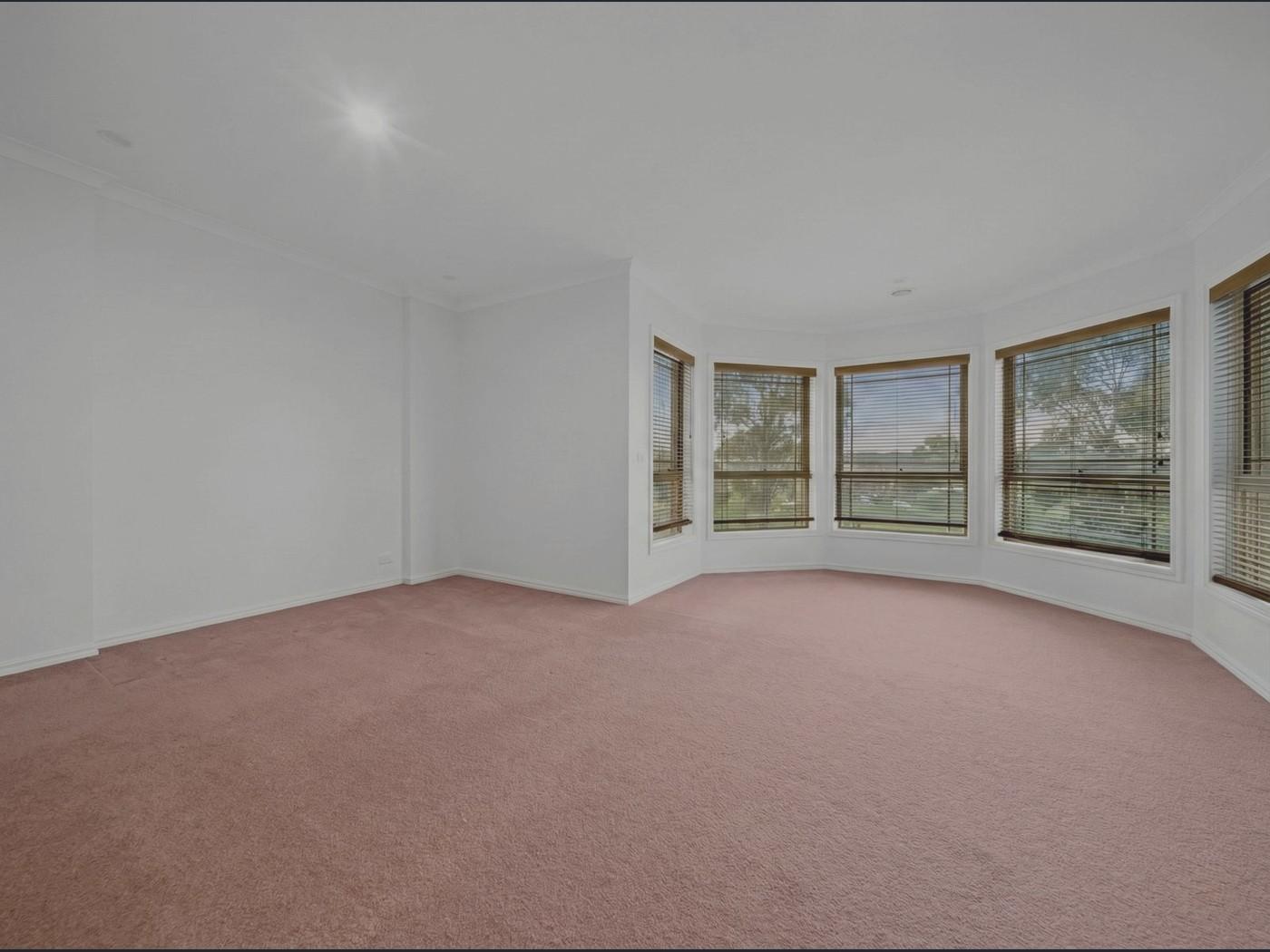
Before
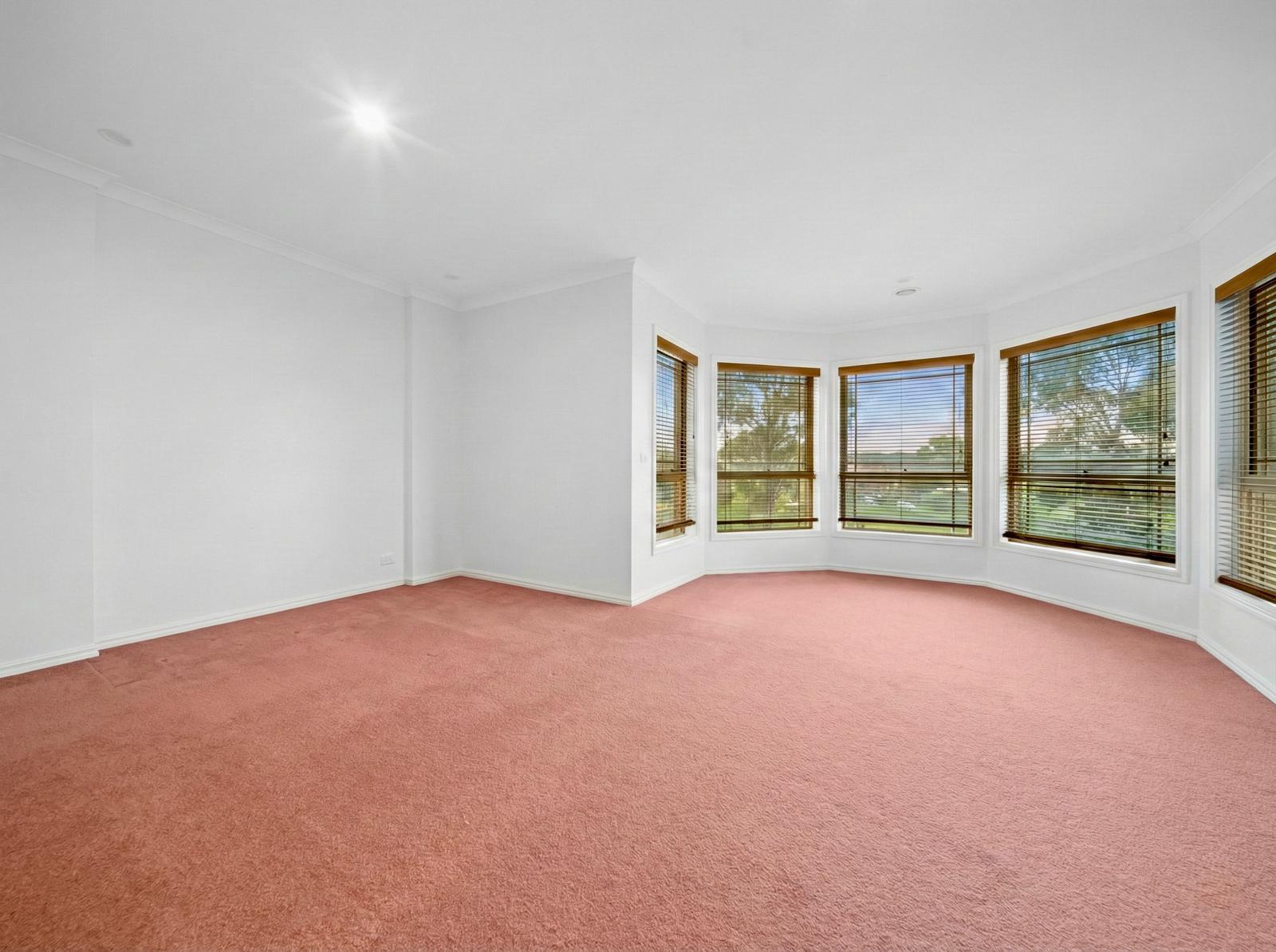
Unfurnished
Preview the Unfurnish transformation
What it does
The Unfurnish tool removes furniture from an interior room photo and fills the cleared area so the room reads as empty and spacious.
It is useful when an existing photo shows furniture that distracts from the room itself, or when you want an empty-room image before using Virtual Staging.
Who it’s for
- Agents who need to market a room as an empty space
- Property managers preparing rental listings after a tenant moves out
- Photographers who need a quick unfurnished version of a room image
How it works
- 1Upload the furnished room photo.
- 2Select Unfurnish from the Photo Enhancer.
- 3Enhancia removes furniture and reconstructs the visible floor and wall areas.
- 4Review the empty-room output before downloading or staging it.
Inputs & outputs
Limitations & things to check
- Complex rooms with heavy occlusion can produce reconstruction artifacts.
- Permanent fixtures and actual room dimensions should be checked against the original image.
- Disclosure rules for digitally altered listing photos vary by market and portal.
Frequently asked questions
Can I virtually stage the image after unfurnishing it?
Yes. Many workflows use Unfurnish first, then apply Virtual Staging to add cleaner furniture and decor.
Does it change the size of the room?
No. It is meant to remove furniture from the photographed room, not alter the room dimensions.
Related tools
More resources
Read related guides in the Enhancia Knowledge Base, or see full pricing details on the pricing page.