AI Virtual Staging for Real Estate Photos
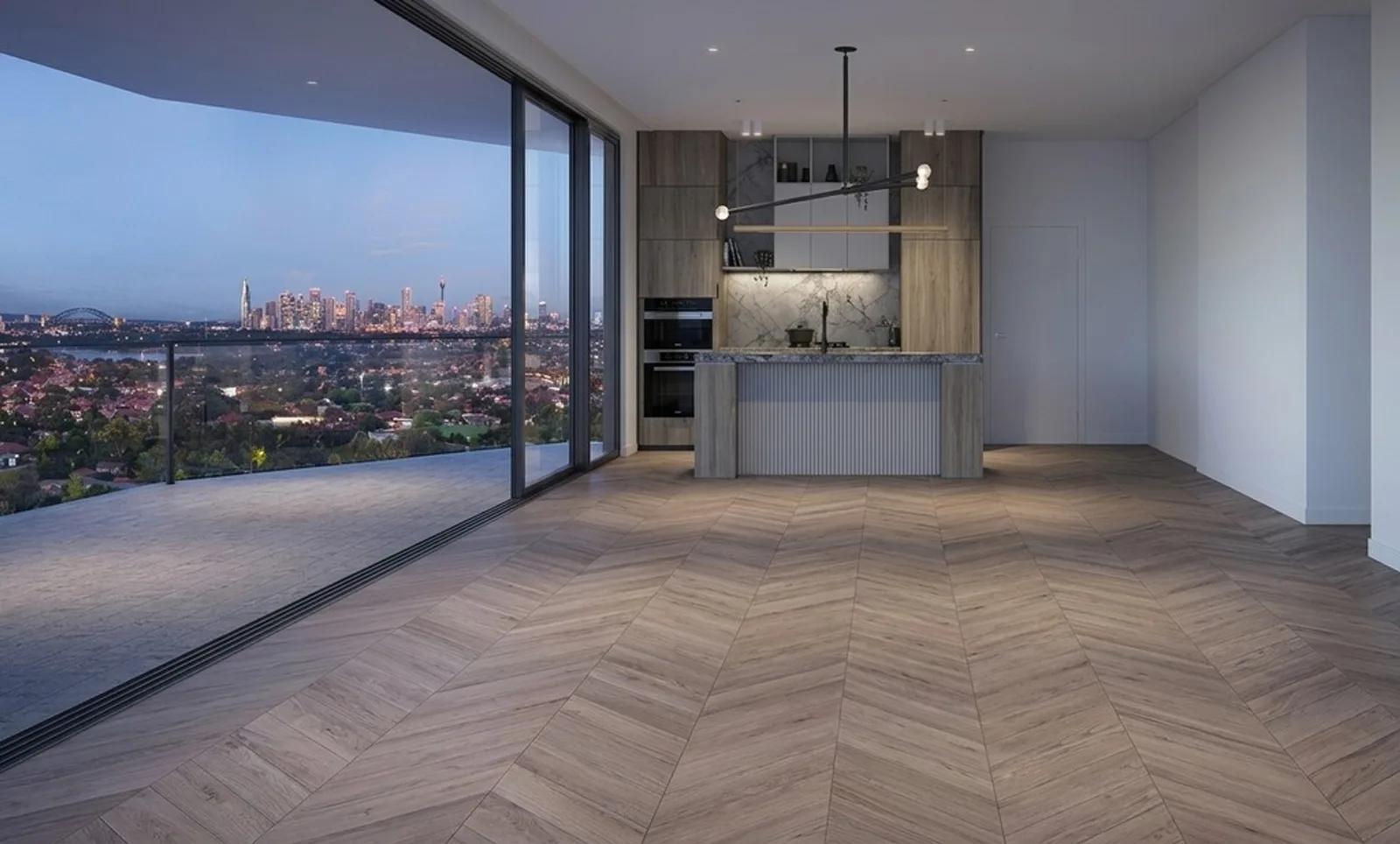
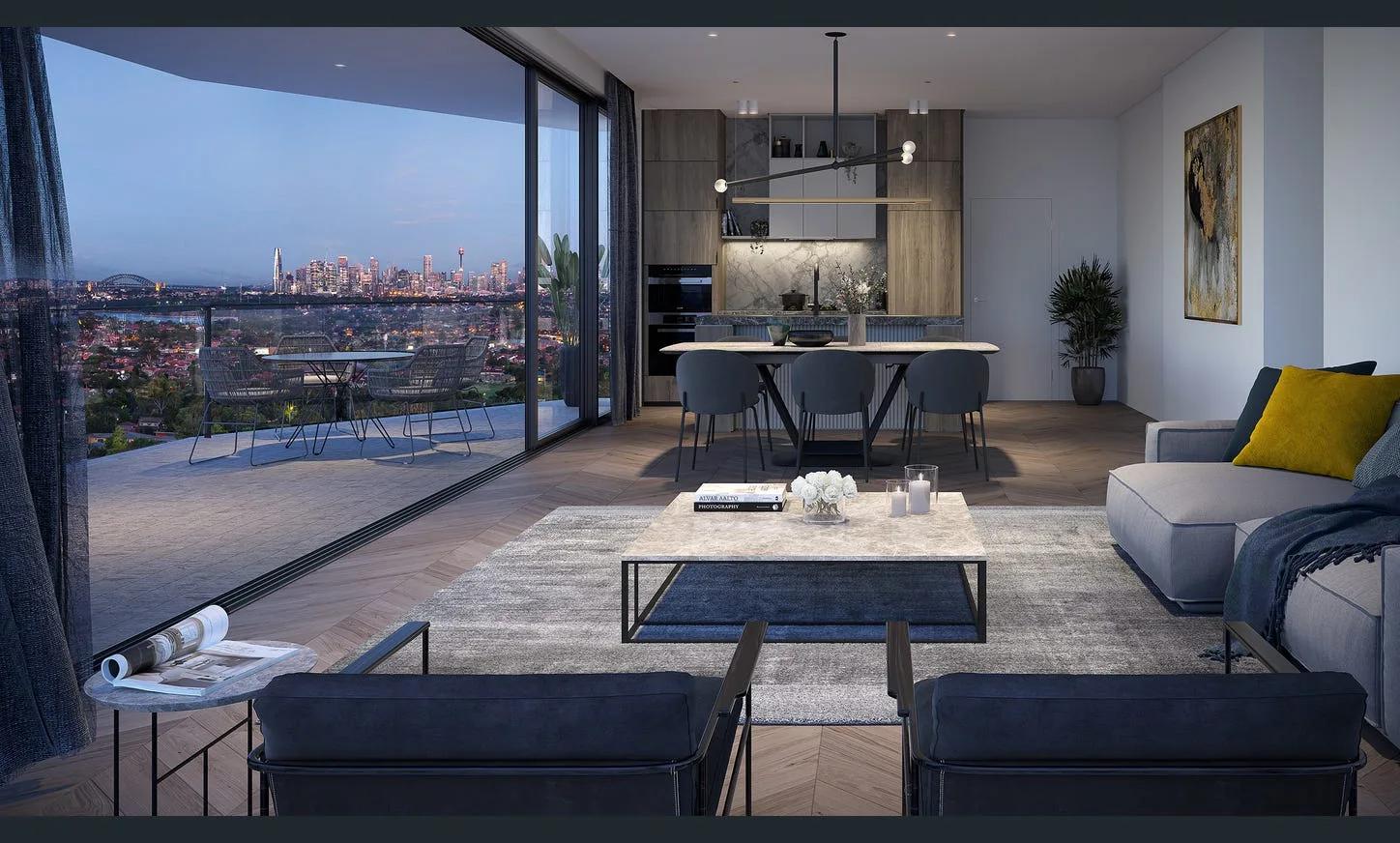
Furnish an empty room in a single photo — no movers, no rental furniture, no waiting. Enhancia's AI virtual staging drops realistic furniture into vacant property shots so buyers can picture the space the moment they see your listing.
What Is AI Virtual Staging?
AI virtual staging adds realistic furniture and decor to a photo of an empty room, so a vacant property looks furnished and move-in ready. Enhancia scales each piece to fit the space, uses a neutral style that appeals to most buyers, and keeps every architectural detail — walls, windows, and fixtures — untouched. It is digital home staging done in seconds, not days.
Built for the People Who Sell and Rent Property
- Real Estate Agents — Make vacant listings photograph like furnished ones, and win the click.
- Property Managers — Show a rental’s potential without hauling in a single chair.
- Property Developers — Present display suites and off-the-plan units before they’re furnished.
- Home Sellers & Vendors — Give an empty home the warmth buyers connect with emotionally.
Stage a Room in Four Steps
- 1Upload — Add a photo of the empty room, straight from your phone or desktop.
- 2Choose Virtual Staging — Select the Virtual Staging tab inside your project.
- 3Let the AI Furnish It — Enhancia generates a furnished version of the same room in seconds.
- 4Download or Restyle — Save the staged photo, or regenerate for a different look.
Which Rooms Stage Best
Virtual staging works best on empty or nearly empty interior photos, where the AI has clear, open space to fill. Rooms that consistently stage well include:
- Living rooms — sofas, rugs, and coffee tables that define a relaxed, livable space.
- Bedrooms — beds, side tables, and soft styling that signal comfort.
- Dining rooms — a table-and-chairs setup that shows scale and function.
- Vacant units & show suites — empty apartments and display homes staged for marketing.
Why Agents Choose Enhancia for Staging
- Seconds, not days — A furnished photo is ready almost as fast as you can upload one.
- Pay per photo — No retainers, no bundles you won’t use. Stage one room or fifty.
- No lock-in — No forced yearly plan; buy credits when you need them.
- You own your images — No copyright claims on anything you upload or create.
- Made for property, not generic photos — Every setting is tuned for real estate listings.
Inputs & Outputs
Staging Photos the Right Way
- Virtually staged photos should be presented honestly. Most property portals and real estate boards ask that a staged image be labeled as virtually staged, so buyers know the furniture was added digitally. Because Enhancia only adds furniture and decor — never altering room size, windows, or fixed features — the space buyers see is the space that exists. Always check the disclosure rules of the portals and boards you list on before publishing.
Frequently Asked Questions
What is virtual staging in real estate?
Virtual staging is digital home staging: AI adds furniture and decor to a photo of an empty room so a property looks furnished and move-in ready, without any physical furniture. It helps buyers picture themselves in the space.
Is virtual staging the same as home staging?
It achieves the same goal as home staging — helping a property show well — but it’s done entirely in the photo. Instead of furnishing the actual house, the AI furnishes the picture of it, which is faster and far less costly.
What kinds of rooms work best for house staging with AI?
Empty or mostly empty interior rooms work best — living rooms, bedrooms, and dining spaces give the AI the clearest space to furnish naturally.
Do I need to disclose that a photo is virtually staged?
Most property portals and real estate boards require a disclosure label on virtually staged photos. Check the specific requirements of the portals and boards you list on before publishing.
Does virtual staging change the room itself?
No. It only adds furniture and decor to the space as photographed. Walls, windows, and other fixed architectural features stay exactly as they are in the original photo.
Related Tools
AI Real Estate Photo Enhancer
Our AI real estate photo enhancer gives you targeted control over the issues that make listing photos feel unfinished. Upload a property image, choose the edit it actually needs, and we improve that specific part of the photo — from colour and white balance to perspective, sky, clutter, facade presentation, or resolution. Instead of pushing one generic filter across the whole image, we help you refine the photo in focused passes, review the result, and keep building toward a clean, listing-ready finish.
Day to Dusk
Our AI day to dusk tool turns your ordinary daytime exterior into a warm, golden-hour twilight shot in seconds. Upload a photo taken in flat midday light, and we relight the sky, warm the tones, and switch on the window lights so your property glows the way it would at dusk. It’s the single most eye-catching edit in real estate photography — and you get it without waiting for the perfect evening, without a tripod, and without touching Photoshop.
More resources
Read related guides in the Enhancia Knowledge Base, or see full pricing details on the pricing page.